Coming soon · Menu bar app for macOS

Your Mac stays awake. Your status stays green.

A small menu bar app for work that happens away from the keyboard — reading a long doc, taking a call on your phone, waiting on a build. Your Mac won’t sleep, and your Slack and Microsoft Teams status won’t flip to away mid-task.

Email me at launch

Launching soon. One email when it’s out, nothing else.

  • Keep Awake is free forever
  • Pro: 7-day trial, no signup
  • macOS 13+ · Apple silicon & Intel

Made for work that happens away from the keyboard

  • Reading long docs

    No dimmed screen halfway down the page.

  • Calls from your phone

    Your status stays green while you talk.

  • Whiteboarding

    Sketch it out. Your Mac won’t doze off.

  • Presenting

    No dimming or sleep in the middle of a demo.

  • Builds and downloads

    Your Mac stays awake until the job is done.

How it works

Set it up once, then let it run

  1. Open it and find the dot

    Drag Greenkeeper to Applications and open it. It lives in your menu bar as a small dot, not in your Dock.

  2. Click to keep your Mac awake

    Choose 30 minutes, 1, 2, 4 or 8 hours, or leave it on until you turn it off. This part is free and needs no permissions.

  3. Turn on Stay Active Pro

    Allow Accessibility once in System Settings, then press Test Now to check it works. Add your work hours and it switches itself on and off each day.

What the dot means

  • Off
  • Keeping your Mac awake
  • Keeping you active
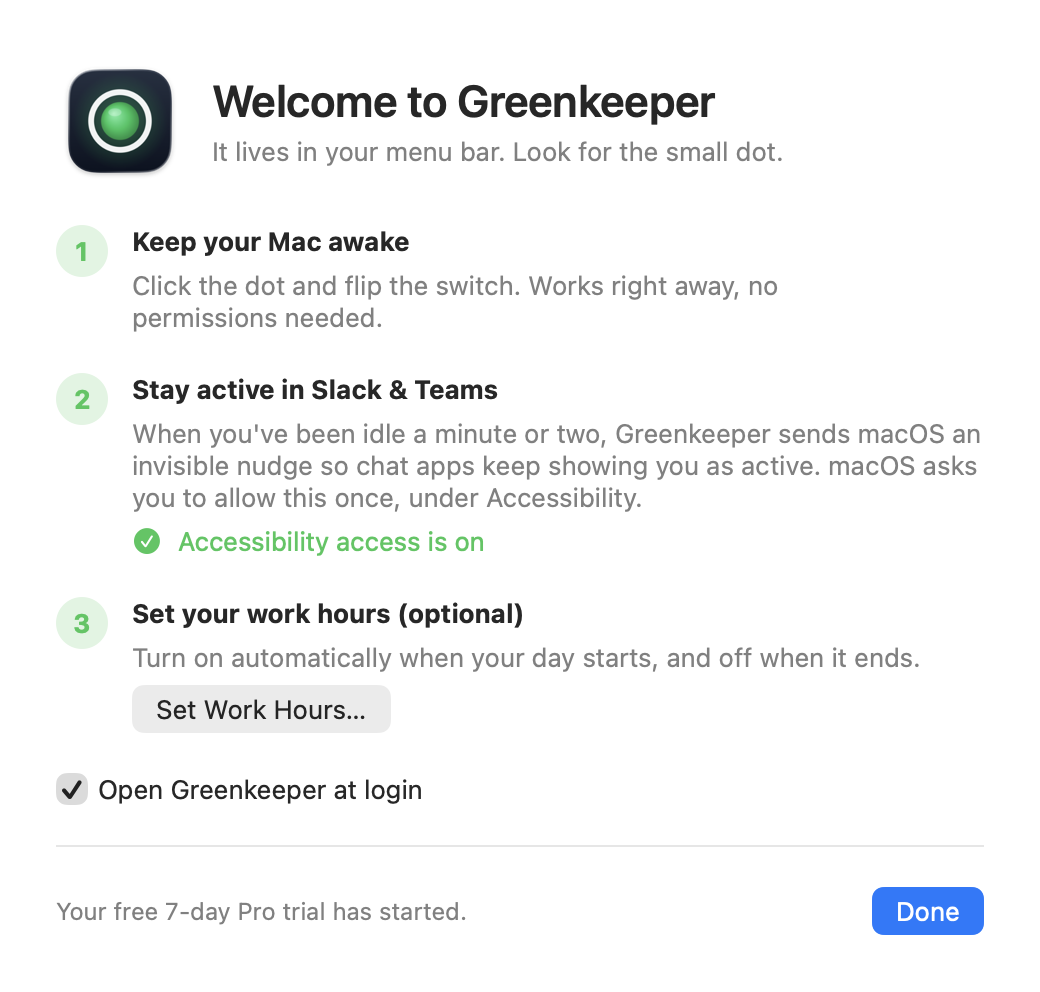
Greenkeeper’s welcome window with three steps: keep your Mac awake, stay active in Slack & Teams with Accessibility access turned on, and set your work hours. A note at the bottom says the free 7-day Pro trial has started.
The welcome window walks you through all three steps.

Features

Keep Awake is free. Stay Active is Pro.

Use the free part for as long as you like. Pro adds the invisible nudges, work hours and smart pauses — and you can try it free for 7 days.

Free forever

Keep Awake

One click to keep Mac awake and the display on. It uses the same macOS mechanism as the built-in caffeinate command.

  • 30m, 1h, 2h, 4h, 8h, or until you turn it off
  • Choose whether the display stays on too
  • No permissions to grant
  • Optional pause when your battery runs low
Pro · $7.99 once

Stay Active

Desktop chat apps that watch your Mac’s activity, like Slack and Microsoft Teams, keep showing you as active while you’re away from the keyboard.

  • Invisible nudges: the cursor never moves
  • Every nudge checked, plus a Test Now button
  • Work hours that switch it on and off
  • Smart pauses when you’ve left, locked your screen or closed your chat apps
Pro

Stays active without moving your cursor

After 1–3 minutes of idle time (varied, not on a fixed beat), Greenkeeper sends macOS a mouse event that moves zero pixels. Nothing on screen changes, but desktop chat apps see activity, so your status stays active. It’s an easy way to keep Teams status active, and Slack green, through a long read or a phone call.

  • After every nudge, it checks that your Mac’s idle timer really reset.
  • Test Now runs the same check whenever you like.
  • If an app doesn’t respond, switch to a tiny jiggle: one pixel and straight back.
  • Needs the macOS Accessibility permission, a one-time switch in System Settings.
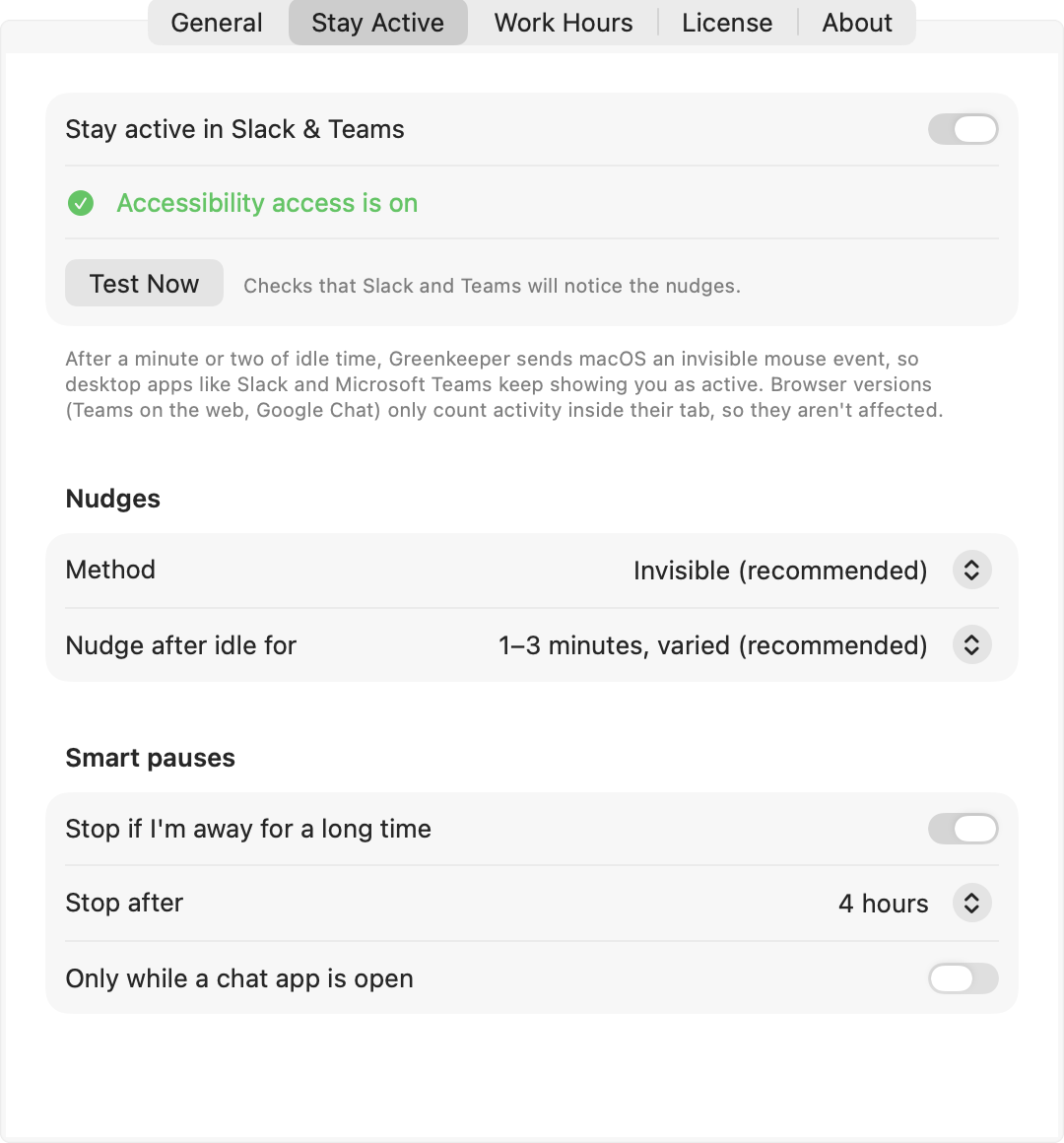
Stay Active settings: Accessibility access is on, a Test Now button, the invisible nudge method, nudges after 1–3 minutes of idle time, and smart pauses that stop after 4 hours away or run only while a chat app is open.
Pro

Runs on your work hours, and knows when to stop

Set your days and hours, say Monday to Friday, 9:00 to 5:30. Greenkeeper turns on when your day starts and off when it ends. Slack always active while you work, and away like normal in the evening.

It also steps aside on its own:

  • When you’ve really been away for a while (4 hours by default).
  • While your screen is locked.
  • When no chat app is open, if you like: Slack, Microsoft Teams, Zoom, Discord, Webex or Mattermost.
  • When your battery runs low.
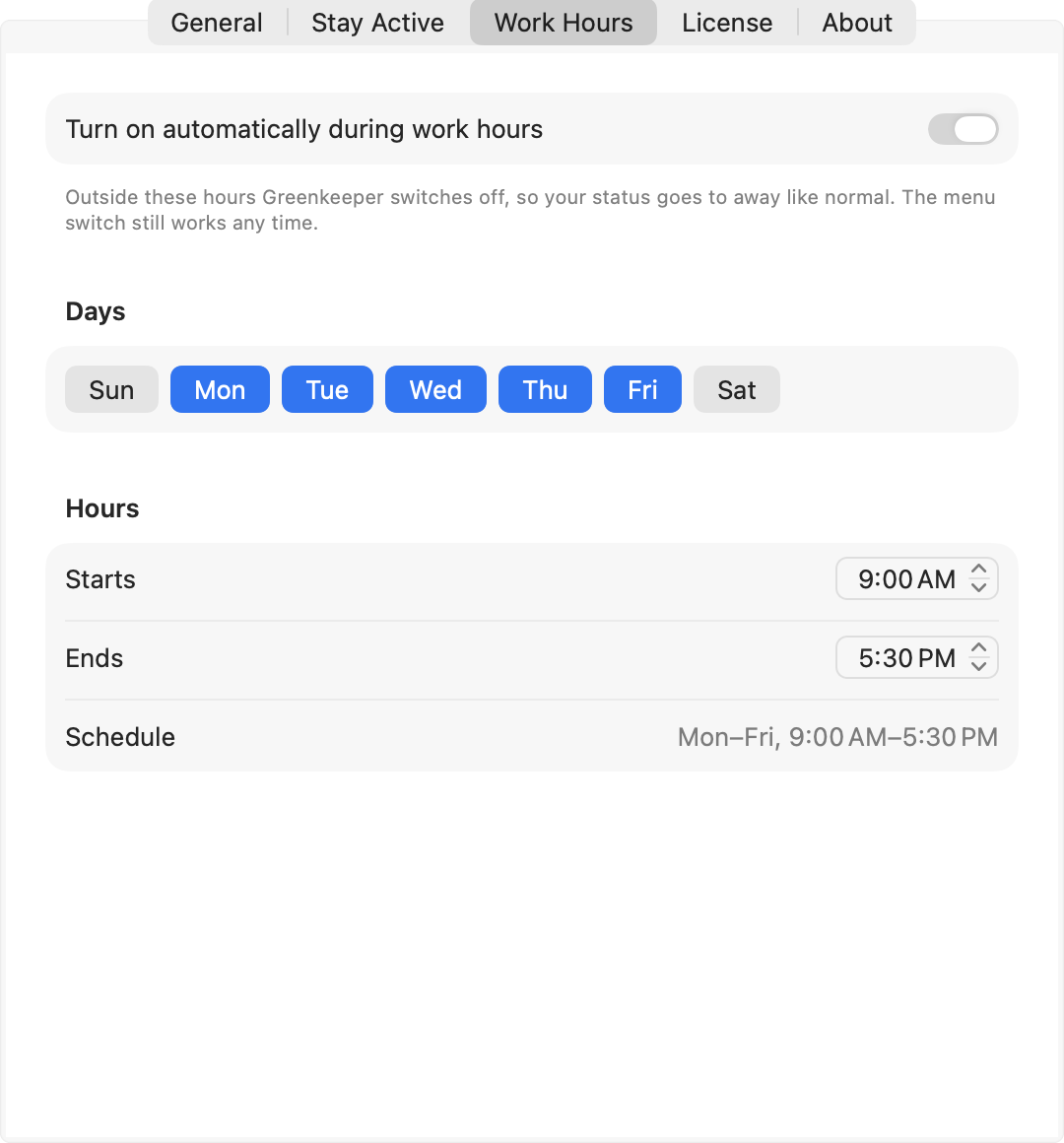
Work Hours settings: turn on automatically during work hours, with Monday to Friday selected, starting at 9:00 AM and ending at 5:30 PM.

Compare

A mouse jiggler for Mac, without the jiggle

A USB mouse jiggler keeps you active by moving the pointer. Keep-awake tools stop sleep, but that usually doesn’t count as activity, so your status can still go idle. Greenkeeper does both in software, and stops when you’re done.

Greenkeeper compared with a USB mouse jiggler and keep-awake tools
Greenkeeper USB mouse jiggler Keep-awake tools
Keeps your Mac awake Yes, Free Yes Yes
Keeps your Slack and Teams status active Yes, With Pro Yes Usually not
Cursor stays still Yes No, It moves Yes
Nothing to carry or plug in Yes No, Needs a USB port Yes
Follows your work hours Yes, With Pro No Some do

Pricing

Free to start. One payment for Pro.

No subscription and no account. Pro comes with a 7-day free trial built into the app.

Free

$0 forever

Keep your Mac awake.

  • Keeps your Mac and display awake
  • 30 minutes to 8 hours, or until you turn it off
  • No permissions needed
  • Optional pause on low battery
Download free Get notified at launch

No account and no time limit.

Pro 7-day free trial

$7.99 one-time

Everything in Free, plus:

  • Stay active in Slack and Microsoft Teams
  • Work hours that switch it on and off
  • Smart pauses when you’ve left or locked your screen
  • Use it on up to 3 of your Macs
Buy Pro — $7.99 Get notified at launch

Launching soon. Every Pro feature comes with a 7-day free trial built into the app, and refunds within 14 days.

Or download the app and try every Pro feature free for 7 days. Our payment provider handles checkout, tax and your license key. Refunds within 14 days.

FAQ

Straight answers

Does my cursor move?

No. Greenkeeper’s nudge is a mouse event that moves zero pixels, so the pointer stays exactly where you left it. If an app ever ignores that, you can switch to a “tiny jiggle” in Settings, which moves the pointer one pixel and straight back.

Do I need to grant any permissions?

Keep Awake needs none. Staying active in chat apps needs the macOS Accessibility permission, because macOS only lets apps with it send mouse events. It’s a one-time switch in System Settings › Privacy & Security › Accessibility, and Greenkeeper shows you where. On a company-managed Mac, an administrator may need to allow it.

Which apps does it work with?

Desktop apps that use your Mac’s system idle time to decide when you’re away. That includes the Slack and Microsoft Teams desktop apps, and likely others. Test Now in Settings confirms the nudges register on your Mac.

Does it work with Teams or Slack in a web browser?

No. Browser versions of chat apps, like Microsoft Teams on the web or Google Chat, only count activity inside their own tab, so Greenkeeper doesn’t affect them. Use the desktop apps instead.

Can my employer tell I’m using it?

They might. Greenkeeper doesn’t hide: it’s a regular app in your Applications folder and menu bar, and employee-monitoring software can detect apps like it. Some workplaces don’t allow them, so check your workplace’s policies and follow them.

Greenkeeper is meant to keep your status accurate while you’re working away from the keyboard, not to make you look busy when you’re not.

Does it work with the lid closed?

No. Closing your MacBook’s lid still puts it to sleep. (If you use it closed with an external display, it isn’t asleep, so Greenkeeper works as usual.)

How is this different from the caffeinate command?

Keep Awake uses the same macOS mechanism as caffeinate, with a menu and timers instead of Terminal. But keeping a Mac awake doesn’t count as activity, so chat apps can still mark you away. That’s the part Stay Active adds.

What happens after the 7-day trial?

The trial starts the first time you open Greenkeeper, with no account, email or card. When it ends, the Pro features switch off and Keep Awake keeps working for free. Buy a license whenever you like to turn Pro back on; your settings will still be there.

How many Macs can I use it on?

One Pro license covers up to 3 of your Macs, say a work laptop, a home desktop and a spare. Licenses are personal, so each person on a team needs their own.

Can I get a refund?

Yes. If Pro isn’t right for you, ask for a refund within 14 days of purchase. Reply to your receipt or email support@getgreenkeeper.com. Our payment provider processes it.

What does Greenkeeper collect?

Nothing about how you use it. There are no accounts, no analytics and no tracking. The app only goes online to check your license key and to look for updates. The privacy policy has the details.

Changelog

What’s new

  1. Version 1.0.0 Latest

    First release.

    • Keep Awake (free): keeps your Mac and display awake for 30 minutes to 8 hours, or until you turn it off, with an optional low-battery pause.
    • Stay Active (Pro): invisible nudges keep Slack and Microsoft Teams showing you as active, with a check after every nudge, Test Now, and an optional tiny-jiggle mode.
    • Work hours (Pro): turns on and off with your schedule.
    • Smart pauses (Pro): stops when you’ve been away for hours, while your screen is locked and, if you like, when no chat app is open.
    • A 7-day Pro trial built in, with no signup.

Step away. Stay green.

Keep Awake is free. Pro comes with a 7-day trial built in, with no signup and no card.

macOS 13 Ventura or later · Apple silicon and Intel